
-850x450.png)
NVMe vs SATA SSD: Which One Should You Buy for Your PC or Laptop Upgrade?
Both NVMe and SATA SSDs are far faster than a hard disk, but they connect differently and reach very different top speeds. Before you buy, you need to know which type your laptop or motherboard supports, whether the extra speed will make a real difference for your work, and what to check on the specification sheet. This guide explains it all in plain language.
The quick answer
If your laptop or PC has an M.2 slot that supports NVMe, buy an NVMe SSD. It is much faster for copying large files, loading big projects and installing software, and today it is the standard choice for new builds and upgrades.
If your laptop only has a 2.5-inch drive bay, or you want to replace an old hard disk in an older PC, a SATA SSD is the right choice. It still feels dramatically faster than a hard disk for booting Windows, opening apps and everyday use.
What is a SATA SSD?
SATA is the same connection that hard disks have used for years. A SATA SSD replaces the spinning platters with flash memory, which removes the slow mechanical parts and gives a huge improvement in responsiveness.
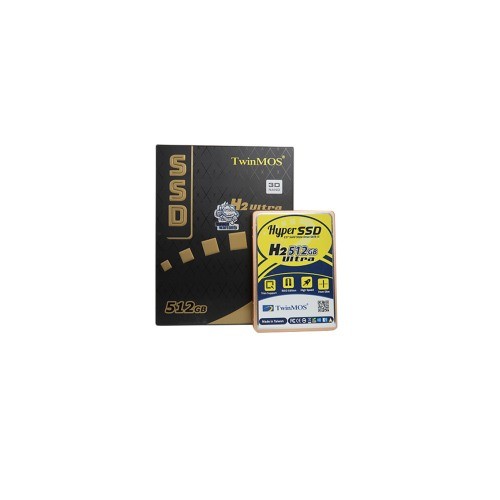
The SATA III interface is limited to 6 Gb/s, which works out to a real-world maximum of around 550 to 600 MB/s. That is why almost every SATA SSD lists similar speeds. The TwinMOS H2 Ultra 512GB SATA III SSD, for example, lists up to 580 MB/s read and 550 MB/s write.
Most SATA SSDs come in the 2.5-inch size, the same as a laptop hard disk, so they fit straight into older laptops and desktop drive bays. Some SATA SSDs also come in the M.2 shape.
What is an NVMe SSD?
NVMe (Non-Volatile Memory Express) is a protocol designed specifically for flash storage. Instead of the SATA connection, an NVMe SSD talks to the processor through PCIe lanes, the same high-speed lanes used by graphics cards. This removes the SATA speed limit.
NVMe drives are sold by PCIe generation:
- PCIe Gen3 x4: up to roughly 3,500 MB/s at the top end. The TwinMOS AlphaPro 512GB NVMe lists up to 2,104 MB/s read, and the AlphaPro 1TB up to 2,455 MB/s.
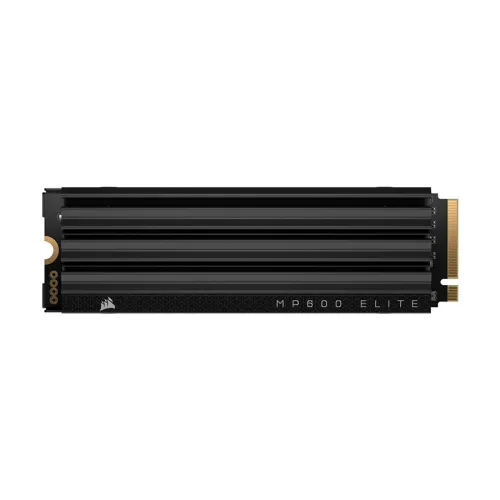
- PCIe Gen4 x4: up to roughly 7,000 MB/s and more at the top end. The TwinMOS CoreX 512GB Gen4 lists up to 5,000 MB/s read, and the Corsair MP600 Elite 1TB up to 7,000 MB/s read and 6,200 MB/s write.
- PCIe Gen5: even faster, used in the latest high-end desktops.
Almost all NVMe SSDs for PCs and laptops use the M.2 2280 shape: 22 mm wide and 80 mm long.
NVMe vs SATA SSD: side-by-side
| Feature | SATA SSD | NVMe SSD (Gen3) | NVMe SSD (Gen4) |
|---|---|---|---|
| Connection | SATA III | PCIe Gen3 x4 | PCIe Gen4 x4 |
| Typical top read speed | Around 550 MB/s | Around 2,000 to 3,500 MB/s | Around 5,000 to 7,000+ MB/s |
| Common shape | 2.5 inch, some M.2 | M.2 2280 | M.2 2280 |
| Fits older laptops with a 2.5-inch bay | Yes | No | No |
| Heat | Low | Moderate | Higher, heatsink helpful in desktops |
| Best for | Upgrading old laptops and PCs | Everyday laptops and budget builds | Gaming, video editing, large files |
Speeds are general ranges. Example drives are listed with their rated speeds on Index IT.
M.2 is a shape, not a speed
This is the most common buying mistake. M.2 describes the physical shape of the card and the slot, not the type of connection. An M.2 slot can support SATA, NVMe or both.
- NVMe-only M.2 slot: accepts NVMe drives. Common in modern laptops and motherboards.
- SATA-only M.2 slot: found in some older laptops. An NVMe drive will not work here, even though it fits.
- Dual-mode M.2 slot: accepts either type.
Always check the laptop or motherboard manual, or the manufacturer's specification page, to confirm what your slot supports before you buy.
Look at the key notch
Most NVMe drives use an "M key" connector with one notch. Many M.2 SATA drives use a "B+M key" connector with two notches. The notch can help you identify a drive, but the manual is still the reliable way to confirm slot support.
Will you actually feel the difference?
Benchmarks show huge gaps between SATA and NVMe, but everyday use feels closer than the numbers suggest. Here is what changes in practice:
Small difference
Booting Windows, opening a browser, Office apps and general use. Any SSD feels fast compared with a hard disk.
Big difference
Copying large files, editing video, extracting big archives, working with large photo libraries, and installing large games or software.
Games load a little faster on NVMe, and some newer games are designed with fast storage in mind. For most players, the jump from a hard disk to any SSD is far bigger than the jump from SATA to NVMe.
The biggest upgrade most Bangladeshi users can make to an older laptop is replacing the hard disk with an SSD. After that, RAM is often the next bottleneck. Read our 8GB vs 16GB RAM guide if your laptop still feels slow with many tabs open.
Gen3 or Gen4 NVMe?
PCIe Gen4 drives work in Gen3 slots, but they run at Gen3 speed. So there is no harm in buying a Gen4 drive for an older system, but you will not get its full speed until you move it to a Gen4 slot.
- Choose Gen3 for an older laptop or motherboard with Gen3 M.2 slots, or for everyday office and student use.
- Choose Gen4 for a newer laptop or desktop with Gen4 support, especially for gaming, video editing and large files.
The TwinMOS CoreX 1TB Gen4 NVMe lists up to 4,800 MB/s and a 5-year warranty, a sensible middle ground. The Corsair MP600 Elite 1TB comes with a heatsink and lists AES 256-bit encryption and a 5-year warranty, aimed at high-performance desktops.
Heat and heatsinks
Fast NVMe drives can get warm during long file transfers. When they get too hot, they slow themselves down to protect the memory, which is called thermal throttling.
In desktops, a heatsink helps keep speeds steady. Many motherboards include an M.2 heatsink cover, and some drives, such as the Corsair MP600 Elite, come with their own. In laptops, there is usually no space for a thick heatsink, so check the clearance before buying a drive with one attached. Laptops often use a thin thermal pad instead.
What else to check on the specification sheet
- Capacity: 512GB is a practical minimum for Windows and everyday apps. Choose 1TB if you store games, video or large projects.
- Flash type: TLC 3D NAND is common and a good balance of speed and endurance.
- Endurance (TBW): terabytes written over the drive's life. Higher is better for heavy users.
- Warranty: 3 to 5 years is common. Keep the invoice.
- Read and write speeds: useful for comparison, but remember they are maximum figures under ideal conditions.
| Example drive | Type | Listed read / write | Listed warranty |
|---|---|---|---|
| TwinMOS H2 Ultra 512GB | 2.5" SATA | 580 / 550 MB/s | 3 years |
| TwinMOS AlphaPro 512GB | NVMe Gen3 | 2,104 / 1,698 MB/s | 3 years |
| TwinMOS CoreX 512GB | NVMe Gen4 | 5,000 / 4,800 MB/s | 5 years |
| Corsair MP600 Elite 1TB | NVMe Gen4, heatsink | 7,000 / 6,200 MB/s | 5 years |
Specifications as listed on Index IT in October 2026.
Which SSD should you choose?
| Your situation | Recommended SSD |
|---|---|
| Old laptop with a hard disk and no M.2 slot | 2.5-inch SATA SSD |
| Older desktop without M.2 | 2.5-inch SATA SSD |
| Student or office laptop with an NVMe slot | NVMe Gen3 or Gen4, 512GB or 1TB |
| Gaming PC | NVMe Gen4, 1TB or more |
| Video editing or large projects | Fast NVMe Gen4 with a heatsink in a desktop |
| Extra storage in a desktop that already has an NVMe boot drive | A second NVMe if a slot is free, or a SATA SSD |
Installation and setup tips
- Back up first: before replacing a drive, copy your important files.
- Clone or fresh install: you can clone your old drive to the new SSD, or install Windows fresh for the cleanest result.
- Keep the screw: M.2 drives are held by a tiny screw or clip. Do not lose it.
- Check BIOS: after installing, confirm the drive is detected in the BIOS.
- Do not fill it completely: leave some free space, as SSDs perform better when they are not full.
- Use the old hard disk: keep it as a second drive for backups, or put it in an external enclosure.
Browse every option on the SSD page, or see portable SSDs if you need fast external storage.
Final verdict
If your system supports NVMe, it is the better buy for speed and future use. Gen3 is fine for everyday work, and Gen4 suits gaming, editing and large files. If you have an older laptop or PC with only a 2.5-inch bay, a SATA SSD is still the single best upgrade you can make. Either way, check your slot type before you buy.
Frequently Asked Questions
Is NVMe better than SATA SSD?
NVMe is much faster for large file transfers and heavy workloads. For everyday use, both feel fast, and SATA is still a big upgrade over a hard disk.
Can I put an NVMe SSD in any M.2 slot?
No. Some M.2 slots only support SATA. Check your laptop or motherboard manual to confirm NVMe support.
Will a Gen4 NVMe work in a Gen3 slot?
Yes, it is backward compatible, but it will run at Gen3 speed.
Is a SATA SSD good for gaming?
Yes. It loads games far faster than a hard disk. NVMe loads slightly faster still, but the difference is smaller than benchmarks suggest.
What does M.2 2280 mean?
It describes the size: 22 mm wide and 80 mm long. It is the most common size for laptop and desktop SSDs.
How much SSD storage do I need?
512GB is a practical minimum for Windows and everyday apps. Choose 1TB or more for games, video and large projects.
Do NVMe SSDs need a heatsink?
In desktops, a heatsink helps fast Gen4 drives keep their speed during long transfers. In laptops, check space first, as there is often no room for one.
Can I use both NVMe and SATA SSDs in one PC?
Yes. Many users boot from NVMe and use a SATA SSD or hard disk for extra storage.
Should I replace my laptop hard disk with an SSD?
Yes. It is usually the single biggest speed improvement you can make to an older laptop.
What is TBW on an SSD?
TBW means terabytes written. It is an endurance rating that shows how much data can be written over the drive's life under warranty.

There are no comments for this Article.